Getting Started Enhancing the #Sitecore Content Hub with External React Components

One of the things I like about the Content Hub is there is so many ways to customize it. Last year I wanted to be able to call an API and display data on assets. It was suggested to use React Components. It has been over a year of using them and doing some really cool things with them. I have presented what I learned at several meetups. With this blog I want to show how you can get started using them.

Why Use Them?

With all the customization you can do the with the content hub why would external components be needed? The answer is simple. So you can extend the functionality of the content hub and utilize external resources in doing so. The possibilities are endless as you can create some really cool things with React components. In this blog I will go over external component creation at a higher level. In future blogs I will showcase more detailed code.

Storybook

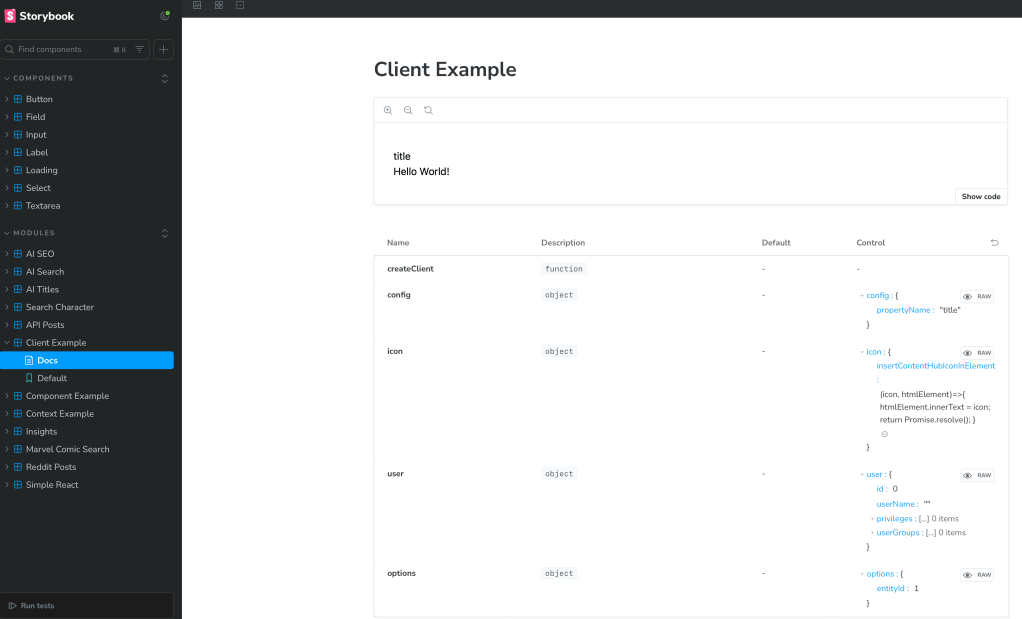
As I started the React components journey I learned how to implement and use Storybook. I believe this is a critical tool as it allows you test React components without actually integrating with the systems you are using them with. In the screenshot below you can see a list of components I used Storybook to test and what an example screenshot looks like.

Basic Structure

I will keep this simple and show you how a simple React component would work. Keep in mind this is part of a starter kit I used and had a lot of things setup already. I simply had to create the component. I will link to the starter kit in this blog post.

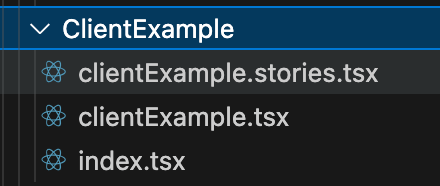
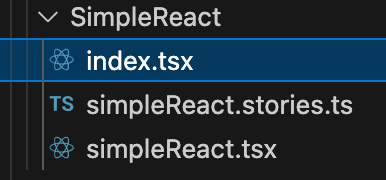
Let’s start with the structure. In this case we will have three different files.

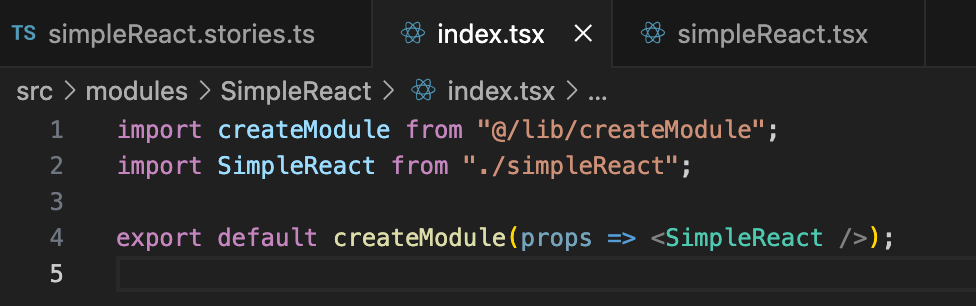
The index.tsx file is what brings this together. You will use this import libraries and call the tsx file which typically contains the output.

As you see below this tsx file simply exports HTML. You can do many things in this file such as call an API and import data. The data then can be used in an HTML document you return.

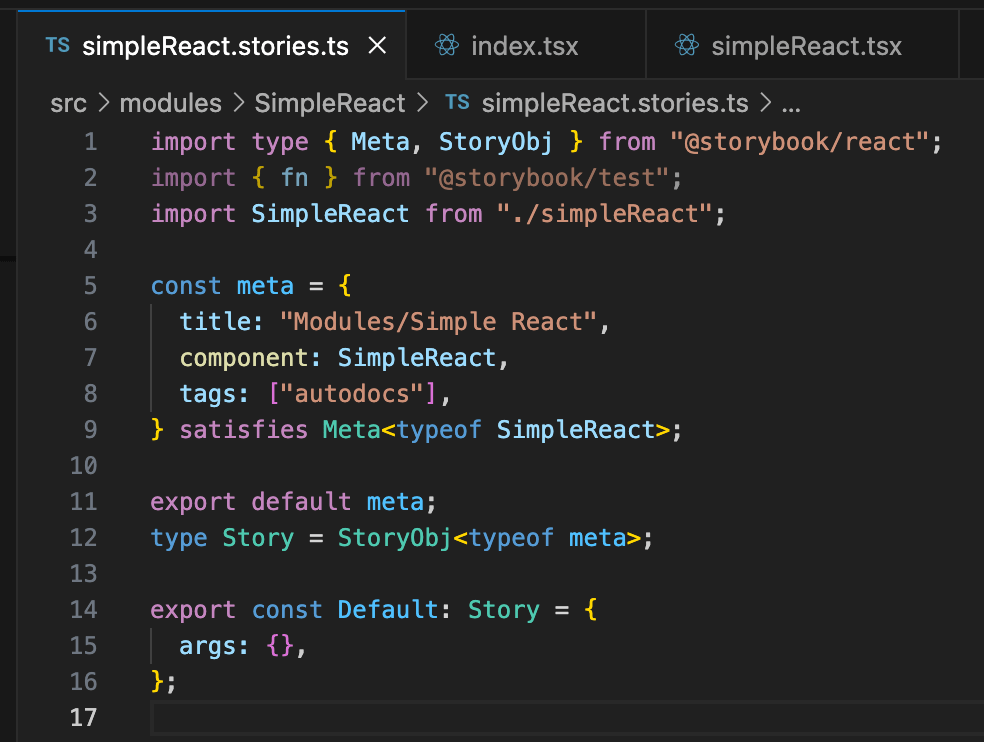
The stories.ts file is use to run with storybook. You can use it to not only call the react component, but you can pass parameters as well.

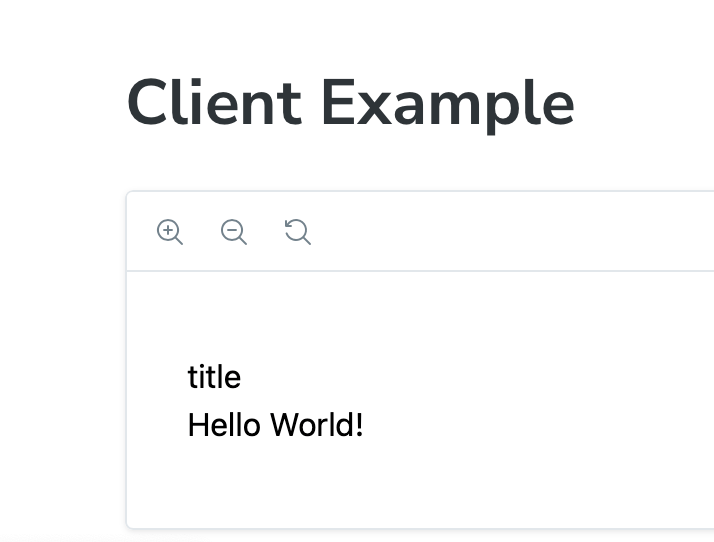
When this is run in Storybook you will see the following output.

In the links (Example Repositories and Starter Kits) section in this blog to get you started you can navigate to the documentation on how to create bundles. You will need these in order for the Content Hub to run your code. It is basically a compiled JS file with all of your code and libraries needed.

Hosting vs Uploading Bundle

In order for content hub to use your React component you will need to make a bundle. There are instructions in the starter kit to do this that I will link to in this blog. After you do create the bundle you can choose to upload it as an asset to content hub or host it in your own website.

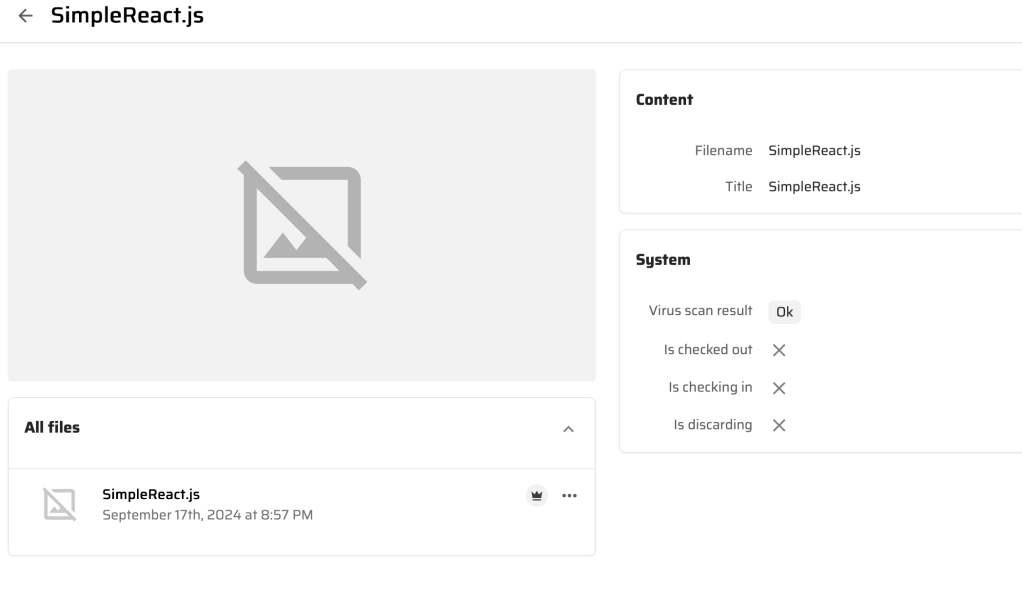
For hosting the bundle you can have the content hub host it by uploading it as a portal asset. You can find the link to Portal assets under the settings.

You can upload your bundle with different versions as needed.

Under pages I will usually add the bundle there.

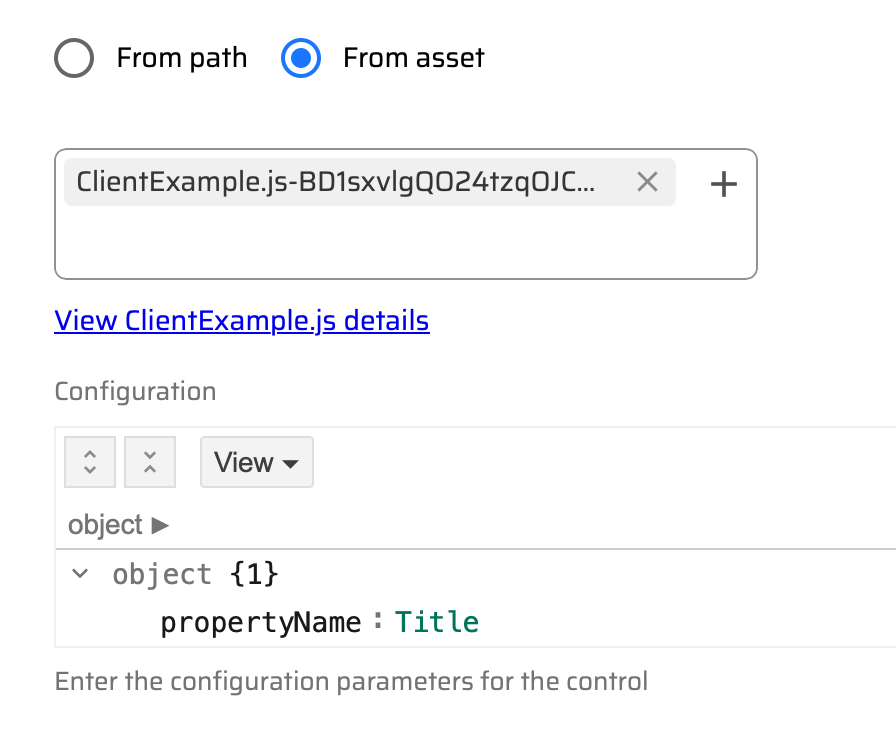
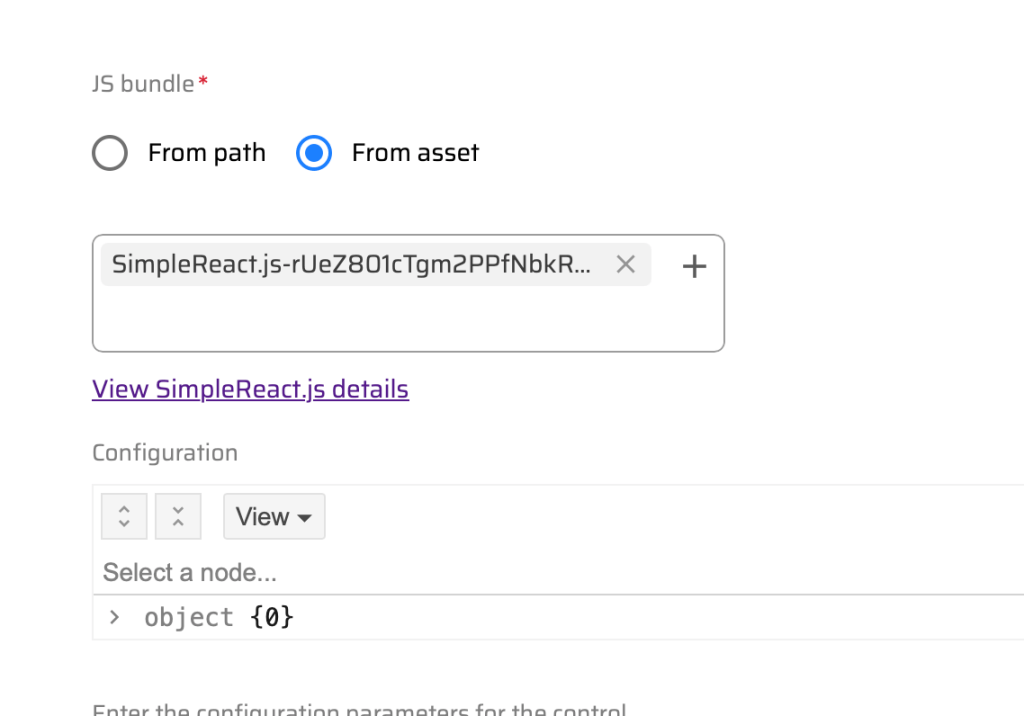
When clicking on an external component such as SimpleReact you will see the following.

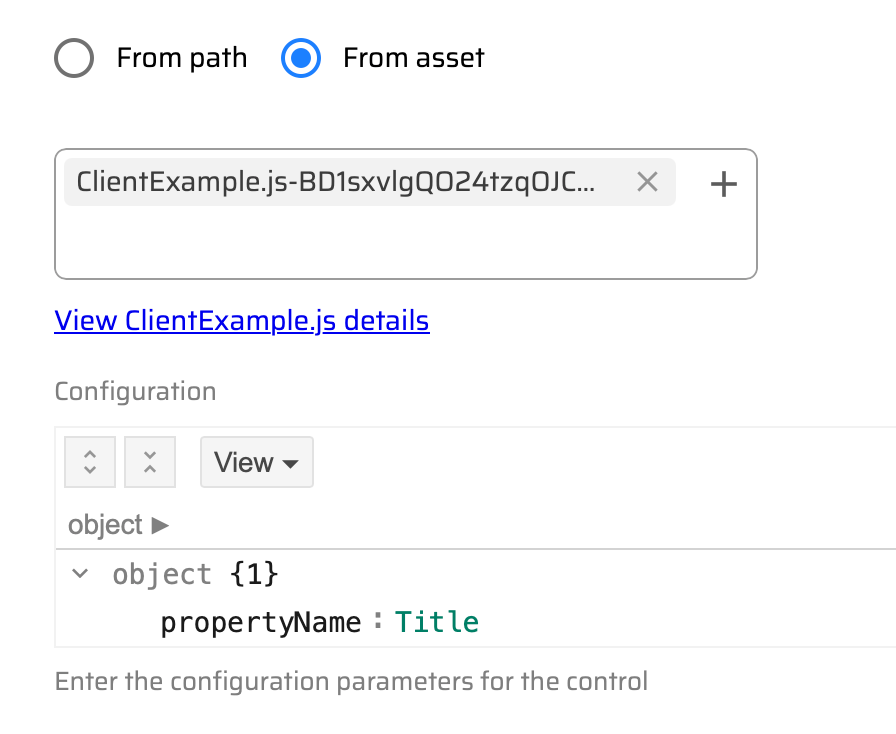
From asset will allow you to link to the page assets in the content hub. Using the From path will allow you to link to a website hosted bundle.

I will talk about this more in a future blog. In the object section you can pass properties from the content hub to your React component. This is very powerful as it allows you to interact with the asset.

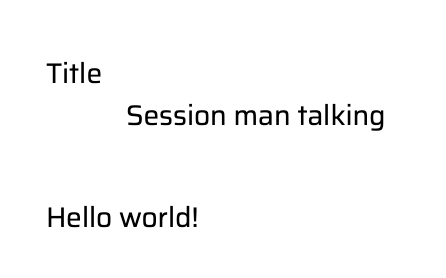
I will get into the more advanced external components later, but here are some simple ones on the asset pages rendering.

Example Repositories and Starter Kits

Below you will find different links to get started making your now React external components for the content hub. I will dive into more detail of some of the more complex ones I created in future blogs.

Here is a video of me presenting what is in this blog at the Columbus Sitecore user group.

Wrapping Up

This blog should help you get started. I will dive into more details in future blogs. Let me know in the meantime if you have any questions.

#Sitecore Content Hub – Detecting AI Generated Images

The content hub recently got a new update to detect AI generated content. When uploading or updating an asset C2PA metadata will be detected. You can find more information on that here.

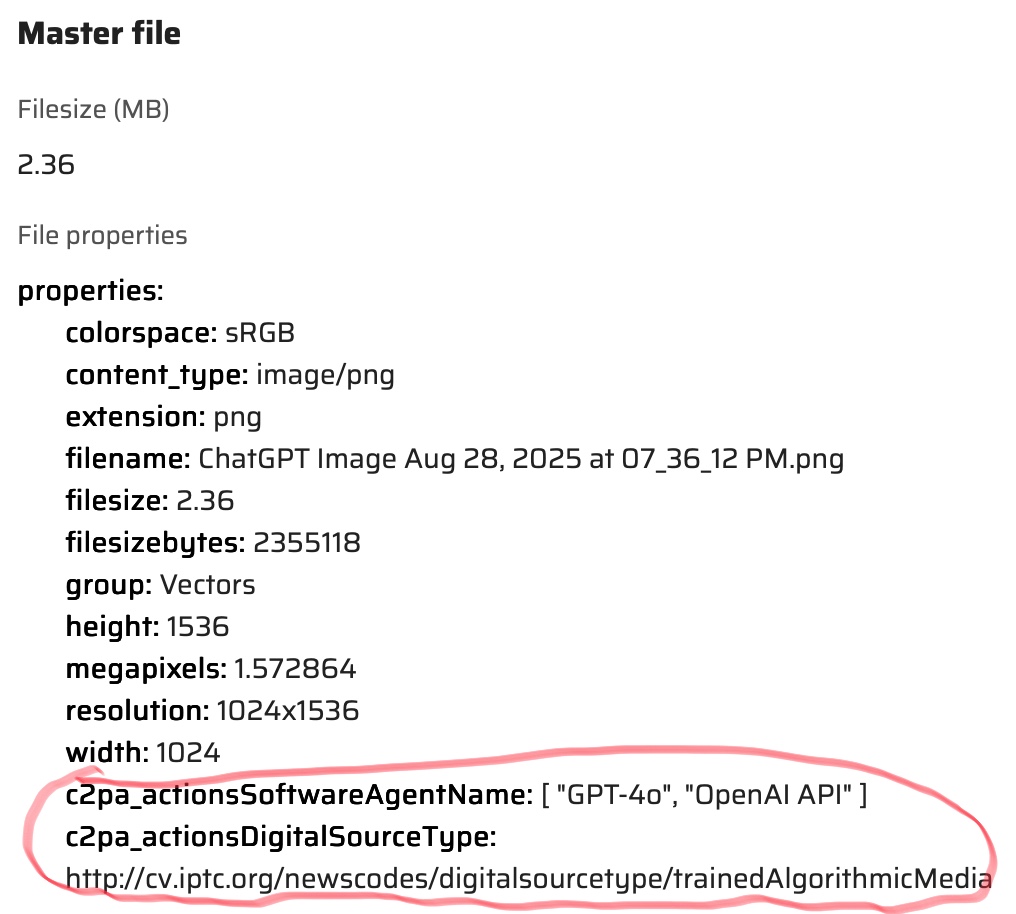
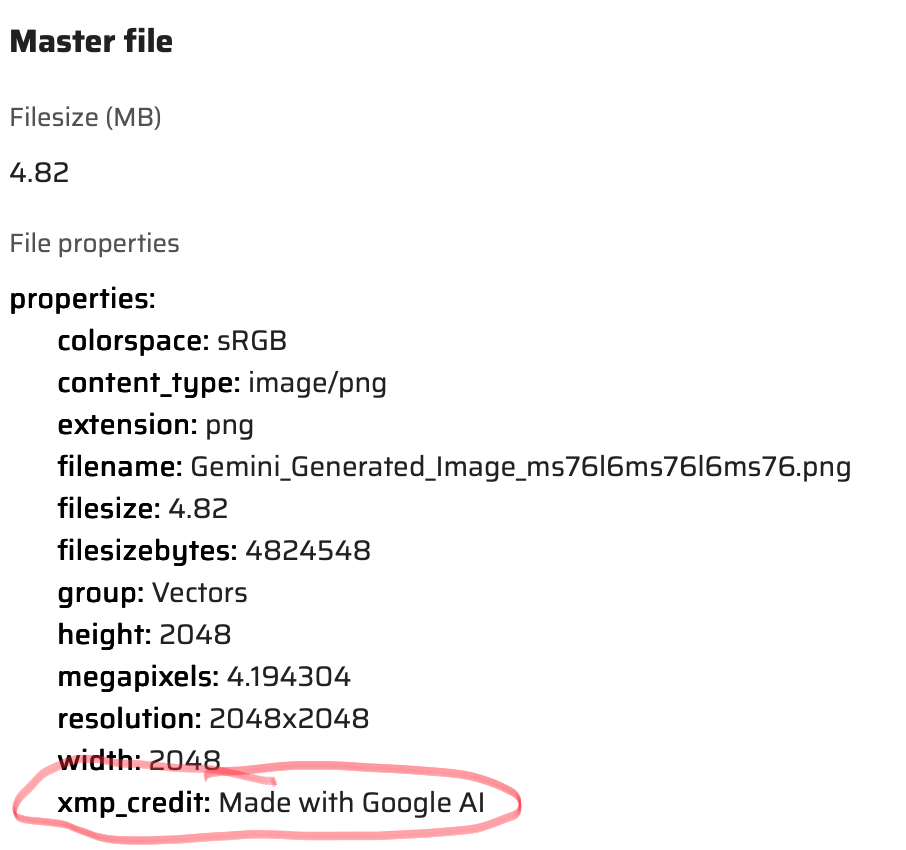
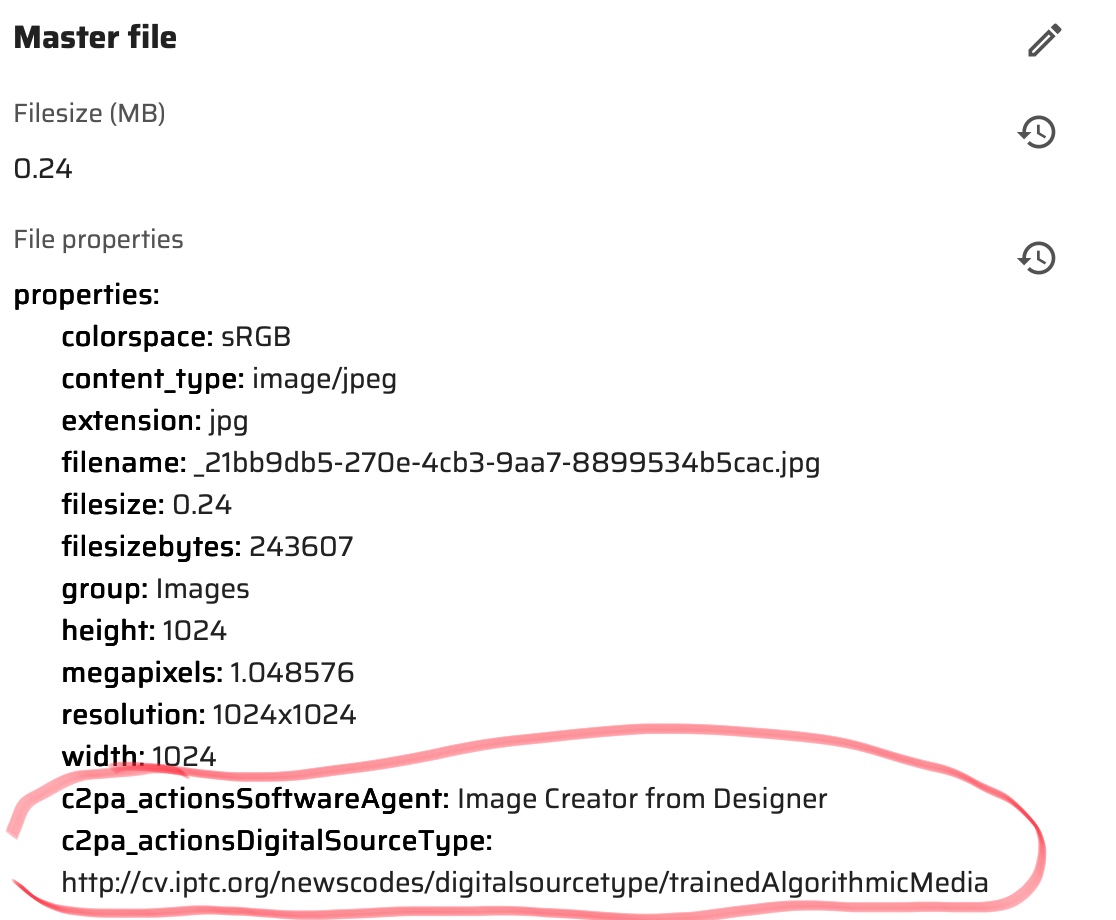
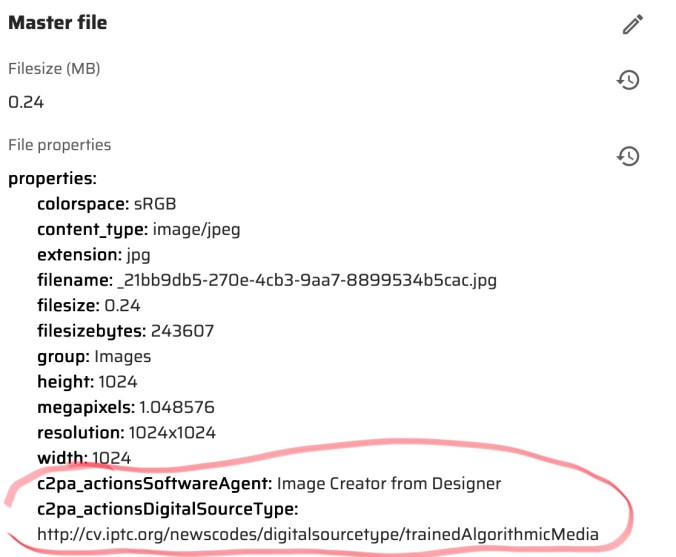
I wanted to test this feature out so going to start with simple AI created images. I used three different AI image generators. ChatGP, Google Gemini and Bing Image Creator. I asked them to “create me an image of a blue dodge challenger jumping over the Willis tower.” In the chart below you will see the image that was created. Below the image is the new Content Hub properties that were generated for each image. You will notice the additional tags highlighted. For some reason didn’t see the same fields in Gemini although I did see the credit line for Google AI.

ChatGPTGoogle GeminiBing Image Creator
Challenger Jumping Over Willis TowerChallenger Jumping over the Willis TowerChallenger Jumping Over the Willis Tower

As you see above new fields are at the end of the properties section.

One of the things I enabled was the Gen AI section on the asset detail. This was enabled from the Tabs/System section of the Asset Details.

The section will show something like the following for the AI generated image on an Asset.

In my opinion by identifying AI images you can make the choice to use them or not. Some companies have polices restricting the use of them. You can find more on this new Content Hub feature here.

#Sitecore Content Hub Variants – The AI Translator is Here

Recently an update came out for creating Content Hub Variants. With this new change you can take an original content piece and create a variant of it in a different language. The process automatically translates the text for you. This update is a big deal to me. Especially with multi-lingual sites I work on. Sometimes, I need translated text for a placeholder. No more Google Translate cut and paste. I am sure this will save a lot of time for content authors.

Create a variant is pretty straightforward. First step is to go the Content menu and do a search.

I will do a search for Running.

Select and open one of the content pieces. Then navigate to the more action menu (three dots) on the upper right hand of the screen. Then choose Localize.

The following window will pop up. Choose a Name for the Variant, a Locale and Check Translate with AI. Then click the Create Button.

A new version will be created translated with the Locale you chose. On the top of the screen you will see the word Variant. Look at all that translated text.

After variant(s) are created you can easily navigate to the original and other variants. Select the More Actions (three dots) and then choose Variants.

The next screen will appear. You can the select a version to navigate to.

I really love this feature and I hope we see similar feature soon throughout Sitecore’s various products.

Streamlining #Sitecore Content Hub Searches with AI Visual Searching

A while back I got to preview the concept of the visual search feature in content hub. Since then I have been anticipating its release. It is officially here and I wanted to put it to the test.

To access this feature, navigate to the Assets.

Click on the AI button and you should see the following. You will see a few things show up. You can use the first icon to search by image. The second icon lets you search by color. You can also type in keywords.

Click on the first icon to search by an image. You will see the following file upload screen. You then can select a local image to search by. In this case I will select a runner in a city.

After uploading the image, a search for images will show related images.

Next using the search by color option you will see the following. Choose a color.

Once the color is chosen you will see images related to that color.

Once you have results you can even break things down further by adding search text.

What if this is a common search that a content author does? Well you can save this search and use it again if needed. Simply click on the Save button.

The next screen will appear. You can then name your search and share with other content authors.

When you go back to assets you will then have the search under the saved searches.

What if you just wanted to search by keywords? Well you can do that to. Simply type in your search keys and click on the arrow. The keyword(s) will be used to visually search images.

If you need to include existing assets for visual search you can do so in the AI settings.

So using this is something I can see streamlining the searching process and making it much faster in retrieving assets. In my opinion this is one of the best search features I have seen. It stands out not only in the content hub, but everywhere else.

#Sitecore Content Hub – Maximizing Efficiency With AI Image Tagging Made Easy

In my last blog I showed you how to auto generate tags. Recently, I used one of the new AI Sitecore Stream features in the Content Hub. This feature utilizes AI to auto tag images. It does a great job in my opinion and will be saving a lot of time for content authors. It will also make searching in Content Hub much better. Here is how you set you up.

First you want to go into the settings menu, select AI Features and turn on Image Tagging from the menu. The default tagging profile is what I used, but you can create a different one.

With the profile you can choose where you want the tagging to be done in the Fields section. As it says you can choose up to 10.

So now you are ready to do some AI tagging for an image. Navigate to an image. From the menu select Tag with AI.

You will see the following. This will take a moment to process.

Tag suggestions have been generated. You can then decide which ones you want to remove and keep.

Now you have an image with tags.

So there you have it. I am really loving these new features. I am constantly showing them off any chance I can get. This link will give you information on this change I blogged about. I can’t wait to see what is next.

#Sitecore Content Hub – Triggering Image Tag Generation

In January I presented at the SUG in Columbus. One of the things I like about presenting is that sometimes I come out of a presentation learning something new. One of the things I learned was how to trigger image tag generation easily. Here are the steps I learned.

  1. Create/Upload an image. As you see below I uploaded a beautiful picture of the Chicago skyline. Well in my opinion it is beautiful. I added some things in overview, but at the moment there is nothing in the image analysis. Finding similar assets though worked automatically.

2. Change Image analysis values. You will see two fields below. Let’s just change the value of Tags to auto-tagged.

3. Back the Overview. Change the asset type to Social and save.

4. Take a small break and refresh the screen. You should now see tags and a description. In the image analysis.

But wait there is more… In my next blog I am going to show you how to trigger AI tagging for images.

#Sitecore Content Hub CMP AI. The Gift That Keeps on Giving.

Between the holidays my goal was to get familiar again with CMP (Content Marketing Platform). As soon as I created a campaign I noticed AI was enabled for content. A quick look at the updates shows it was released in December. It is listed as in beta. From what I have seen so far though, this will be a great addition for content authors. It is the gift that keeps on giving.

On an editable field click on the AI button. You will then be brought to a dialog that will ask you what you are looking for.

As you see above this is just a start. Content Hub had introduced AI for image assets earlier this year. With the addition of this new AI feature, Content Hub continues to improve. It is becoming one of the best all-in-one content tools. In the next year I plan on featuring more of the new features.

#Sitecore Content Hub Admin/Developer Exam Tips from a Nervous Test Taker

Within the last year I passed the Content Hub Admin and Developer exams. Being not so good at taking tests made things even more difficult. Even still for me I am sure there are others like me though so I wanted to give advice on how to give these exams your best shots. It is ok to fail, but not trying is even worst.

Get a Content Hub Sandbox and Start with one of the Available Demos.

Sitecore’s Demo Team has put together some impressive demos. I went through what they did and tried to understand everything. I went through the taxonomy, schemas, scripts etc… Not only did I learn new things it gave me ideas for future projects. If you learn by doing using the installed demo will get you a lot of hands on training.

Use the exam study guides.

Sitecore learning has study guides available that will go over what to expect in the test. These can be overwhelming because there is a lot of information in there. Try to get the overall idea of what is being explained so at least you can go back and remember if you need to retake the exam. Also the practice questions should be copied and memorized. They may not be on the exam, but be prepared just in case.

Create your own study guide.

I took notes on what I thought was important and TBH whenever I failed an exam I quickly jotted down questions I knew I struggled with. The exam results will also tell you what you should study more. Making you own study guide not only gives you something to refer to, but you can use it for future use when you are happily using the Content Hub.

Use multiple choice strategies.

This is always better said than done. However you have four answers to choose from. I found at least two answers didn’t make sense. So I tried to eliminate those. The last two you really need to figure out which one the answer should be. Look into the question for help, but also look at other questions that may also give you clues. At the end of the day if you can’t decide, choose the one that makes the most logical sense.

Understand how taxonomy and relationship works.

You have been exposed to this throughout your career. The content hub is no different. One thing though I want to stress is think of the taxonomy type as a parent to the asset. Not the other way around. This is important because you want to think about how different things relate to each other. For instance a taxonomy has a one to many relationship with assets. Think about other things that relate to each other and how many things would relate back and forth. Could be many to many. Also a rule of thumb is taxonomies and security go hand in hand.

Understand how workflows work.

You have been using workflows in Sitecore and in content hub they really are not that different. Get familiar with the way content hub does workflows. I promise it is not much different than how Sitecore does it.

Spend time in the setting settings in the content hub sandbox.

This is important as you will use a lot of the different tools here. Make sure you look at triggers, schemas, actions etc… You will need to understand why and where you would use them.

Learn about in process vs background process and when/not to use them.

In Process – is necessary when you need immediate feedback for the user interface.Nothing else will be executed until In Process is finished.

In Background – by default a script must be set to background processing. This makes it run behind the scenes without user interaction.

Look at the action scripts in the demo of Content Hub.

Try and understand how data is passed back and forth. See how the scripts interact with various internal an external components.

Take the Sitecore Training and Exam Prep

I highly recommend taking any Sitecore training offered. Make sure you make a connection to the instructor and give them any feedback after taking the exam. Not everything will be on the exam taught in the class, but you will be better prepared.

Breathe and Relax.

I am getting better at this. I tend to be nervous going into any test I take. I soon relax as the test goes on. I tend to get a little anxious when I don’t have a clear answer to questions. Just breathing and relaxing really does help. Just don’t breathe too loud because the microphone may pick it up and the exam could get paused. 🙂 The answer is there, just reread the question and again make the logical choice.

Conclusion

No matter what happens don’t give up trying. If you fail, learn from it and don’t be worried about taking the exam again. I always recommend taking the training and exam prep offered by Sitecore.